How to loop a video on a Mac
Making a clip repeat — to fill a slot, build a looping background, or stretch a short moment — shouldn't need a timeline editor. Here's how to loop a video on a Mac in seconds, 100% offline: pick how many times and Crisp joins the copies end-to-end on-device. Picture and audio both loop, it's fast and lossless, and there's no account, no upload.
The fastest way: just ask
Crisp has a plain-English box ("Or just tell Crisp what to do…"). Drop your video in and type it:
- loop it 3 times — plays the clip three times back-to-back
- repeat it twice — two plays in a row
- loop this 5x — five plays
- put it on a loop — a quick double
Crisp reads the request, switches to the Loop lane and sets the count — you just press the button.
The manual way: the Loop lane
-
Open Crisp and drop in your video
Get the free Crisp app for Mac and drag your clip onto the window. Nothing is uploaded: the whole job runs on your Mac.
-
Ask for Loop
In Crisp, type “loop it 3 times” in the prompt bar at the top — plain English maps straight to the tool, and Crisp shows you what it is about to do before it runs.
-
Set how many times
Drag the slider to the total number of plays — anywhere from 2 to 20.
-
Press Loop
Crisp repeats the whole clip end-to-end and saves the result beside your original. Picture and audio both loop, and it's fast and lossless when the format allows.
Fast and lossless — no re-encode
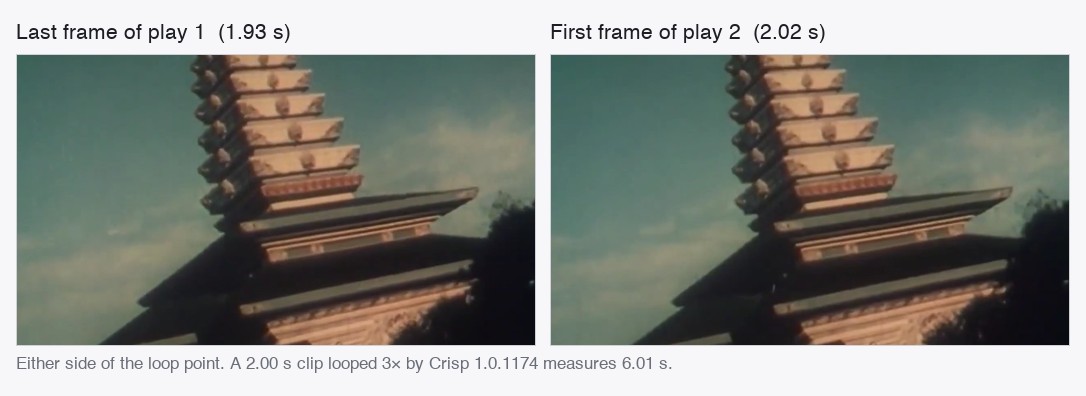
Where it can, Crisp stream-copies your clip and just stitches the copies together, so looping a video is nearly instant and the quality is untouched (it only re-encodes as a fallback for formats that can't be copied across a loop). Want a seamless loop with no visible jump? Use a clip whose first and last frames match, or make a boomerang first, then loop that.
Crisp vs QuickTime vs iMovie vs online loopers
| Crisp | QuickTime | iMovie | Online loopers | |
|---|---|---|---|---|
| Export a looped FILE (not just loop playback) | Yes | Playback only | Copy-paste clips | Yes |
| Pick an exact repeat count | Yes — 2–20 | No | Manual | Varies |
| Plain-English request | Yes | No | No | No |
| Fast / lossless | Yes (stream-copy) | — | Re-encodes | Varies |
| 100% offline, nothing uploaded | Yes | Yes | Yes | Uploads your clip |
| Price | Free tier + one-time $129 · or 4 × $32.25 | Free | Free | Free + upsell |
QuickTime only loops during playback (it doesn't save a looped file); iMovie means copy-pasting the clip over and over; online loopers upload your footage. For a looped file with an exact count, Crisp does it locally.
Why offline matters for looping
- Your footage stays yours. The "loop video online" tools upload your clip first. Crisp loops it entirely on your Mac — nothing leaves the device.
- Fast and lossless. Stream-copying means no waiting and no quality loss.
- No queue, no size cap. Cloud loopers throttle by file size; Crisp works on the whole file locally.
- Audio included. The sound loops with the picture, in sync.
Loop your first clip — offline
Free to try on your Mac. Pick a repeat count, export a looped file — no account, no upload, nothing leaves your device.
Download Crisp for MacApple Silicon · macOS 26+ · Notarized
Looping questions
How do I loop a video on a Mac for free?
Use Crisp: drop your clip in, select the clip and type it in the prompt bar (or type "loop it 3 times"), set the number of plays, and press Loop. It joins the copies end-to-end on your Mac — no account, no upload.
Does the audio loop too?
Yes — both the picture and the audio repeat, in sync, for the whole looped result.
How many times can I repeat a clip?
From 2 up to 20 total plays. For a seamless loop, use a clip whose first and last frames match, or boomerang it first.
Will looping re-compress my video?
Usually not — Crisp stream-copies when the format allows (fast and lossless), only re-encoding as a fallback.
Related guides
Reverse / boomerang a video · Make a GIF · Trim a video