How to upscale a finished edit to 4K on a Mac
Cut your video on a real timeline, then upscale the whole finished edit to 4K in the same export: with the fast Enhance path or the generative SeedVR2 Max restore. All 100% offline: no Topaz cloud, no subscription.
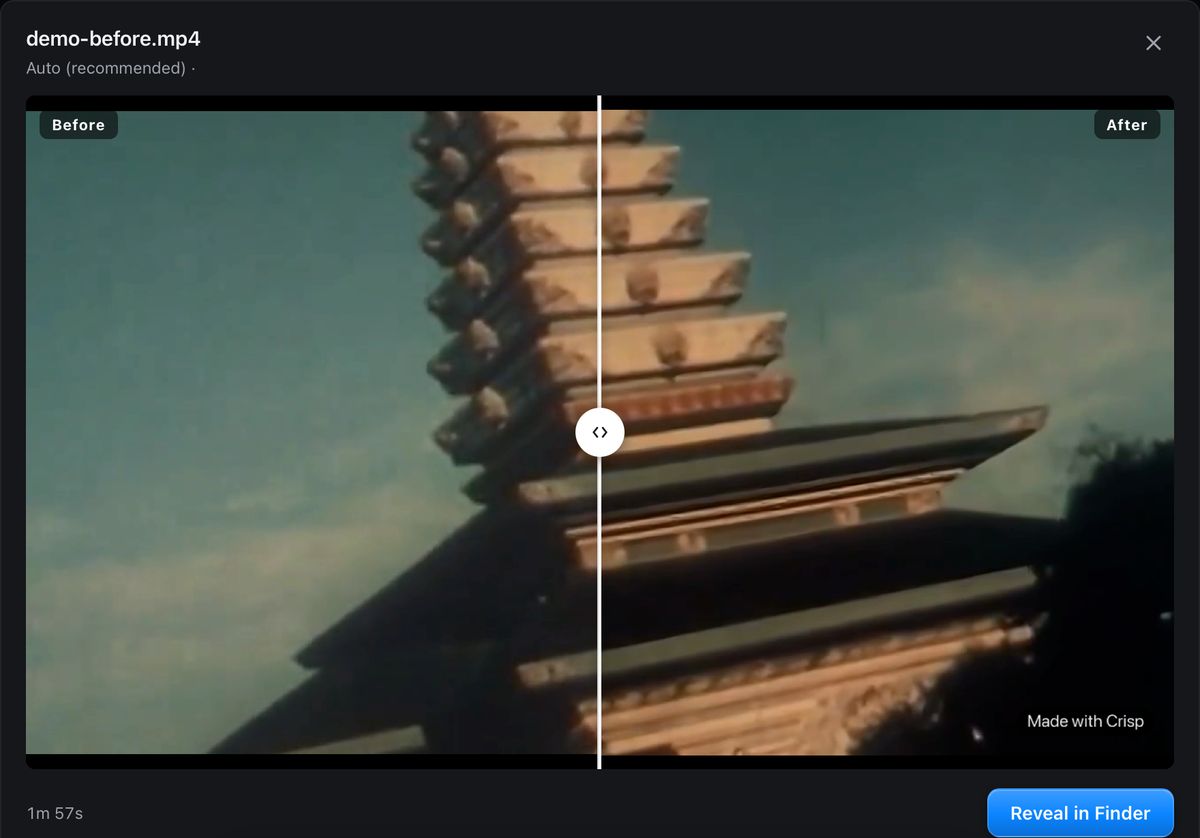
Edit first, then upscale, in one job
Most tools make you choose: edit in one app, then upscale in another (usually a paid, cloud one like Topaz). Crisp does both. You cut your video on a real timeline, then tell Crisp to upscale the finished edit to 4K as part of the export: the whole thing runs offline on your Mac.
Step by step
Build your edit on the timeline
Open Crisp (it starts in the editor), import your clips, and arrange them on the timeline. Trim, split (press S), reorder, add photos, and give clips their own look or speed.
Add a montage or music if you want
Optionally combine clips into a montage or add a music track. Whatever you assemble is your finished cut.
Choose Upscale on export
In the Export panel, set Upscale on export to Enhance to 4K (fast) or Max, SeedVR2 remake (best). Off keeps the source resolution.
Export
Click Export video. Crisp renders your edit, then upscales the whole finished cut in the same job, entirely on your Mac. Enhance is much quicker than Max, though a long edit still takes hours. Crisp shows a live estimate as soon as the job starts. Max uses the generative SeedVR2 model and takes far longer again.
Get your 4K file
The upscaled edit is saved beside your project, clean 4K, nothing uploaded.
Enhance vs Max
Enhance to 4K is the quicker path for a whole edit: still hours for a long one, but a fraction of what Max takes. Max is the generative SeedVR2 restore that rebuilds detail, slower. Both run on-device; Topaz's full-quality Starlight models render in the cloud on a Mac; a smaller local Starlight Mini does run on Apple Silicon.
Why this beats a separate upscaler
- One pass, one app. No exporting a cut, re-importing into Topaz, paying per-minute in the cloud.
- Offline and private. Your finished video never leaves your Mac.
- One-time price. No yearly subscription just to upscale.
| Crisp | Topaz Video AI | iMovie | |
|---|---|---|---|
| Edit on a timeline | Yes | No. Trim and crop on one clip, no timeline | Yes |
| Upscale to 4K | Yes | Yes | No |
| Edit then upscale in one export | Yes | Separate app | No upscaler |
| 100% offline | Yes | Flagship is cloud | Yes |
Edit, then upscale to 4K, offline
Free to try on your Mac. Cut your video and export it in clean 4K in one job, no cloud, no subscription.
Download Crisp for MacApple Silicon · macOS 14+ · Notarized
Upscaling a finished edit
Can I upscale a whole edited video, not just one clip?
Yes. Build your edit on the timeline, set Upscale on export to Enhance or Max, and Crisp upscales the finished cut in the same export.
What is the difference between Enhance and Max?
Enhance is the quicker upscale to 4K, though a long edit still takes hours and Crisp shows a live estimate while it runs. Max is the generative SeedVR2 restore that rebuilds detail, higher quality, slower. Both are on-device.
Does it upload my video?
No. The whole edit-and-upscale runs on your Mac. Nothing is uploaded, unlike Topaz cloud.
Related guides
Upscale a video to 4K · Make a photo slideshow · Split a clip · Make a highlight reel
Upscale last, not first
Run the upscale on the finished edit rather than on each source clip. Upscaling every clip first means paying the render cost on footage you're about to trim away, and every subsequent transcode risks another generation of quality loss. Cut first, upscale once, export.
Background: where the render time goes.
See also: finishing and deliverables.