How to batch upscale videos on a Mac
To batch upscale videos on a Mac, test on one clip, check it properly, then queue the rest. The technical part of batching is easy; every tool here does it. The part that actually costs people an evening is running 200 files with the wrong setting and finding out at the end.
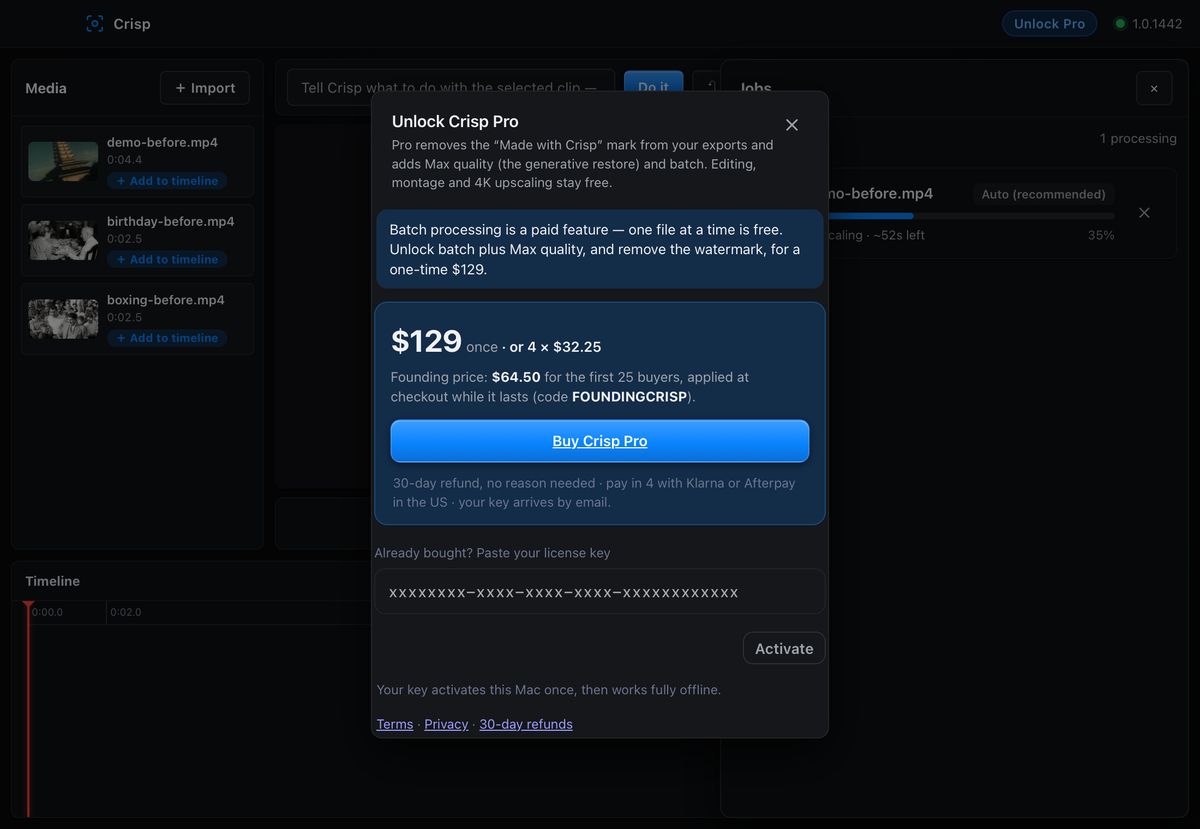
Batch is part of the one-time $129 Crisp Pro unlock. Processing one file at a time is free; queueing several at once is Pro.
The filename collision nobody expects
Cameras reuse filenames aggressively. Every DJI card has a DJI_0001.MP4, every GoPro restarts its numbering, and iPhones exported through different apps produce identical names. Point a batch at files from two folders with one output destination and you have two jobs headed for the same output path.
A careful tool detects that and suffixes the second one. A careless one lets the second render overwrite the first, and because both jobs report success, you find out only when a file you needed contains something else. It is worth a ten-second test with two same-named files before you trust any tool with an irreplaceable batch.
Why it takes as long as it does
Upscaling is GPU-bound and runs one file at a time, because two concurrent jobs compete for the same video memory and finish no faster, often slower, and on a machine with less headroom they can exhaust memory outright. So a batch takes roughly the sum of its parts. There is no batch discount, and a tool claiming one is either queuing (same thing, different word) or cutting quality.
Practical consequence: budget minutes per minute of footage. Forty clips of two minutes each is an overnight job, not a coffee break, and that is normal rather than a sign something is wrong.
Test one file first, properly
Pick the worst clip in the set, not a representative one. The batch's settings have to survive the hardest input, and a setting tuned on clean footage will do something ugly to the noisy clip at position 143.
Then check it the way it will be watched: full size, playing, not paused. Upscalers process frames independently, so their guesses vary slightly between consecutive frames, and in flat areas that reads as a fine crawling shimmer. It is invisible in a still and obvious in motion, and if it is there, it is in all 200 files.
A batch that survives the night
- Output to a different folder than the sources. Not only for tidiness. It makes it impossible for a bug or a mistyped setting to write over an original.
- Check free disk space first. Upscaled output is much larger than the input, and a batch that fills the disk at file 180 can leave a truncated file that looks complete.
- Plug the laptop in and stop it sleeping. A machine that sleeps mid-batch wastes the whole night.
- Don't run other GPU work. Games, other video tools, and anything doing local AI all want the same memory.
- Spot-check three files at the end. The first, one from the middle, and the last. Failures cluster at the end, where disk and thermal problems show up.
When not to batch at all
If the clips differ meaningfully (some noisy, some clean, some interlaced off tape, some modern) one setting will be wrong for most of them. Group them by problem and run several small batches instead. It is more clicking and a much better result.
And if the footage is already sharp and only needs to be a different size, skip the AI entirely. A plain Lanczos resize is seconds per file rather than minutes, does not invent anything, and for clean sources is genuinely the correct answer.
In Crisp
Drop a folder's worth of files in, set the preset once, and they queue. Output names are uniquified against both what is on disk and what is already queued, so the same-basename case cannot silently overwrite. It runs on your Mac, so a large overnight batch costs nothing but electricity, no per-minute cloud billing and no upload.
Related
- How to change video speed on a Mac
- How to color grade a video on a Mac
- How to compress a video on a Mac
Background: where the render time goes.
See also: running a whole catalogue.
See also: working through an archive of tapes.